Reel guide
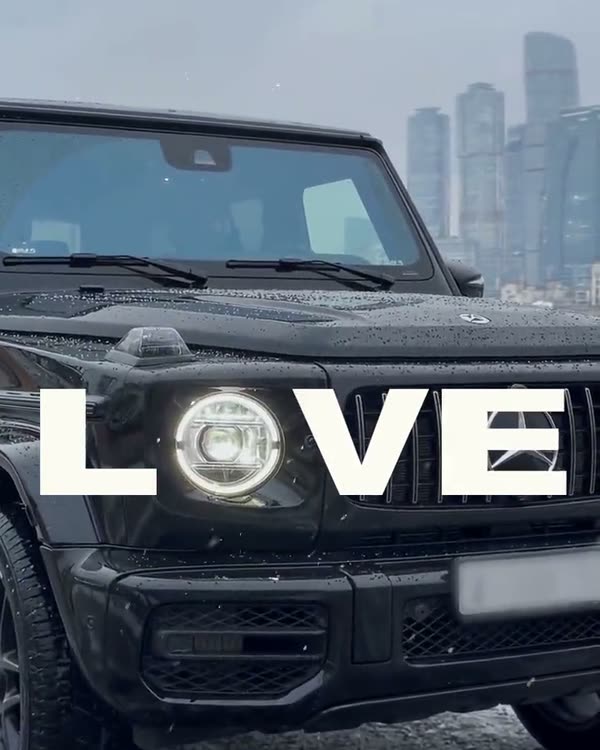
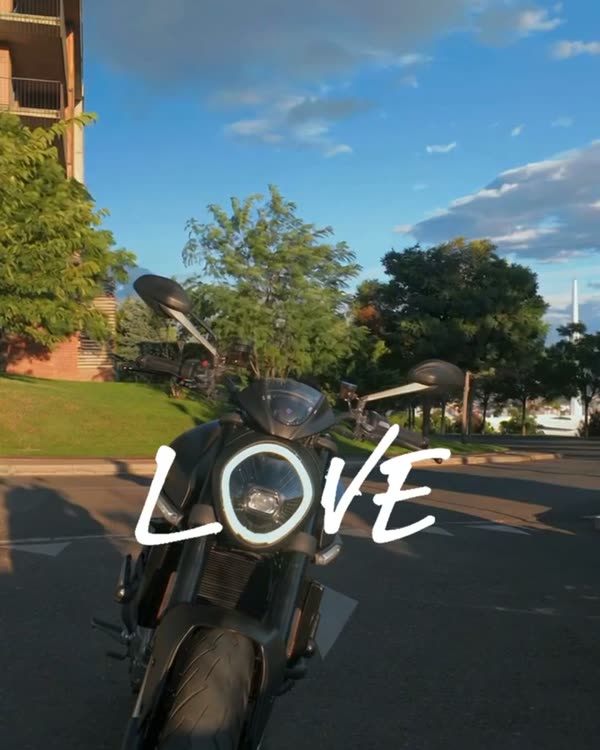
LOVE — the headlight becomes the O
For the reels: G63 LOVE (black and white).
- Mode
- Genjutsu Lite → Object Swap (swaps the car, the background stays as in the source)
- What it cost me
- 60 credits · 15 seconds, 1080p
How it works
The letters “L VE” with a gap sit on screen, the car slowly rolls towards the camera, and its round headlight lands in the gap — you get LOVE. The AI only swaps the car; you add the letters yourself at the end. Ask the AI to draw the text and it will ruin it.
What you'll need
No Claude, no code, no programming: everything happens in the apps.
Step by step
Done: 0 of 5
Step 1. Source
Where: Instagram
Find the trending reel you want to recreate and download it (any reel downloader or a screen recording). This is the “skeleton”: the AI takes the camera movement, the timing and the car's path from it.
Step 2. Car sheet
Where: Gemini
Open Gemini → upload 2–5 photos of your car (or find photos of the model you want) → paste the prompt:
Gemini prompt · car sheetVehicle reference sheet: one single real [black Mercedes-AMG G63] (the same car as in the attached photos), shown four times in a clean 2x2 grid on a seamless neutral light-grey studio background with soft even studio light and soft floor shadows. Top left: front three-quarter view. Top right: rear three-quarter view. Bottom left: exact side profile. Bottom right: straight rear view. The whole car visible in every panel, the same car, identical proportions and details. Blank licence plates with no characters, no text, no labels, no people. Make the car look like a real, regularly driven car photographed with a real camera, not a clean 3D render: a very thin film of fine dust that softens the reflections, faint swirl marks, a little brake dust on the wheels.
Your car goes in the square brackets. Check the sheet by eye: headlights, grille, wheels, bumper colour. A mistake in the sheet = a mistake in every frame of the video.
Step 3. Generation
Where: Higgsfield
In Higgsfield choose Genjutsu Lite → Object Swap → upload the source as the video and the sheet as the image → paste the prompt → run. Check the price in credits before you run it. It takes 5–10 minutes.
If the source is longer than 15 seconds, trim the empty beginning.
Prompt · change the parts in bracketsORIGINAL VIDEO: @[Video 1](video_1) VEHICLE REFERENCE: @[Image 1](image_1) Use the attached original video as the exact timing, camera, environment, lighting and motion reference. Use the attached vehicle reference exclusively as the vehicle identity reference. Replace the original car throughout the entire video with the exact car shown in the vehicle reference: [a black Mercedes-AMG G63, tall boxy body, vertical slat grille with the star, round LED headlights with illuminated rings, exposed door hinges, black multi-spoke wheels], blank licence plate without characters. Keep everything else unchanged: the same road, the same background, the same light, the same slow forward creep of the car towards the camera and the same slow camera push-in. The car's round headlight must end up exactly where the original car's round headlight was in every frame, growing in the frame at the same rate, so that the headlight finishes centred in the lower-middle of the picture with its light ring glowing. Adapt the body proportions naturally around that headlight, but the camera framing and the headlight position stay the same. Keep stable body geometry, grounded wheels with natural slow rotation, realistic reflections. One car only. No people. Remove any text, captions or lettering from the picture: the rendered video must contain no text at all. This must look like real footage from a real camera, not a 3D render: paint not plastic-perfect, a thin film of fine dust, faint swirl marks, subtle sensor grain, true-to-life colour, no HDR glow, no over-sharpening, no CGI shading.
Step 4. Check
Where: Higgsfield
Scrub through the result frame by frame: the car is there, no extra people, no text, no black frames. Defects usually sit in the first and last seconds — just trim them.
Step 5. Edit
Where: CapCut
Letters in CapCut
Take the last frame and find where the headlight is. Put “L” to the left of it and “VE” to the right: a bold, upright font (Times New Roman Bold or Arial Black), letters about as tall as the headlight is wide. The letters stay on screen from the first frame to the last.
CapCut: trim, add text, the original sound or your own track. Format 9:16.
Where it breaks
- at the end of the source a person often walks into the frame or a door opens — cut before that and extend the end with a 2–3 second freeze frame;
- if you want the car to come from the other side, mirror the finished result, not the source. Otherwise the AI “fixes” the mirrored letters and draws them over the car;
- white car: check in the sheet that the bumper is body-coloured. The AI likes to draw it black.
Follow — a new trend almost every week
Open Instagram